01
Set your rules
Choose which details to find, or enter keywords. Save frequently used rules as a template.
Redaction rules
ACME INDUSTRIES
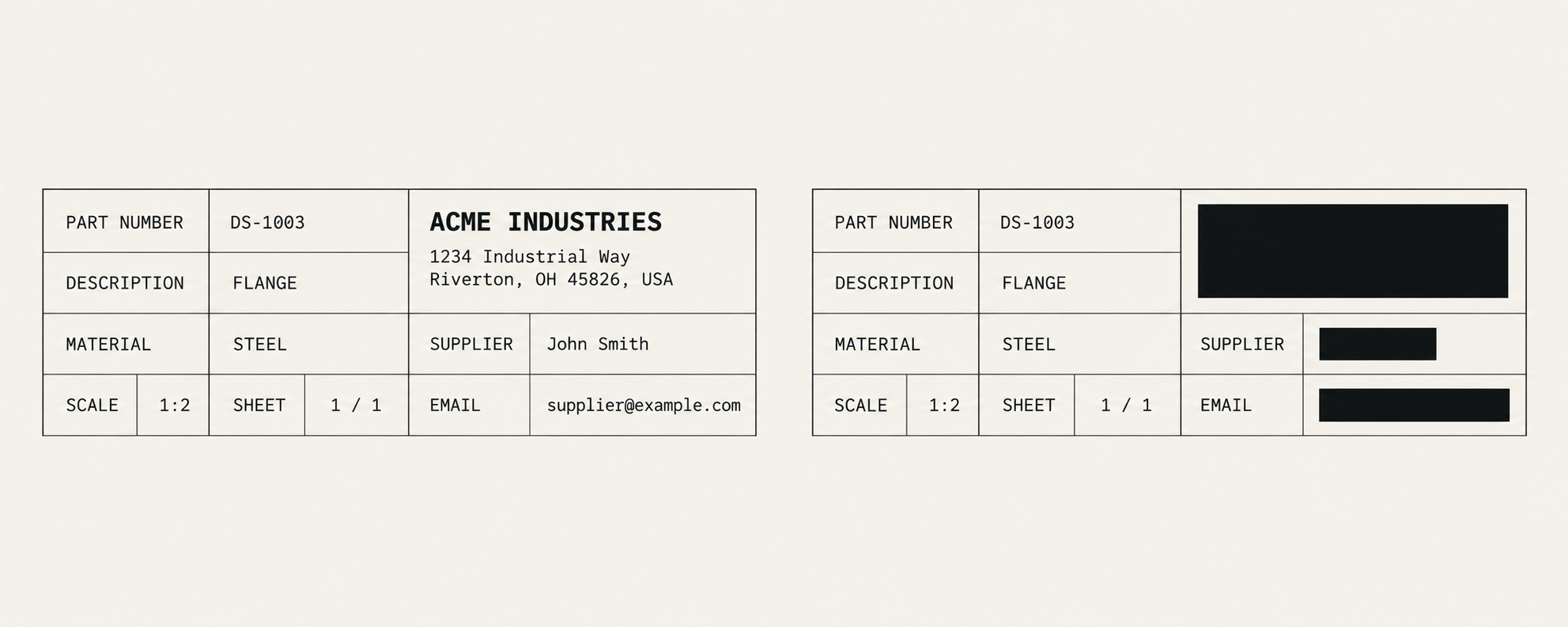
Example templateFind company names, contact details and custom keywords in drawings. Matches are redacted automatically. Adjust the result if needed, then check and download.
PDF · PNG · JPEG · Single-frame TIFF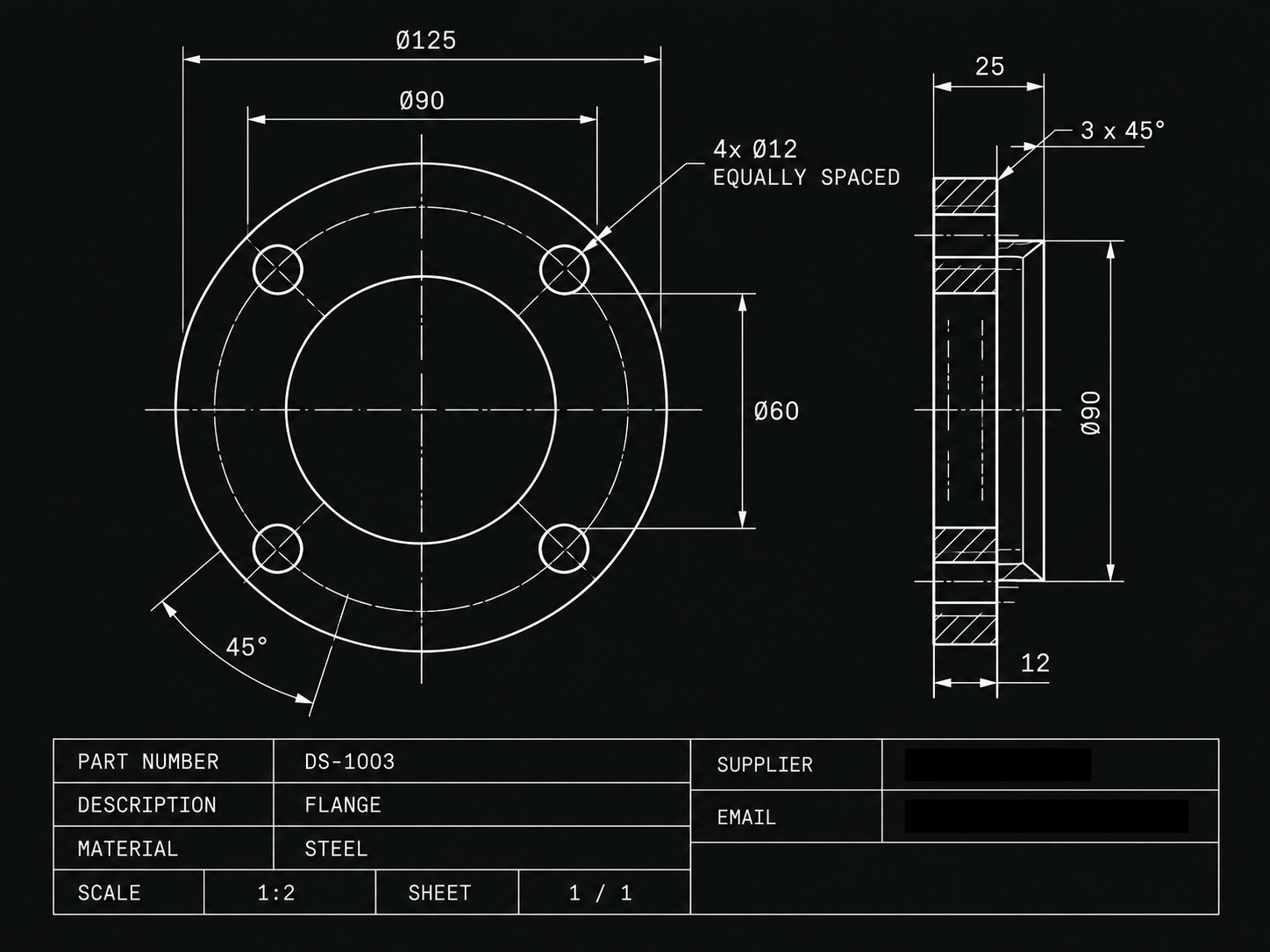
Choose which details to find, or enter keywords. Save frequently used rules as a template.
Matches are redacted by default. Choose Keep to restore an item, or draw a box around anything missed.
Run a text check on the exported pages. If no target text is found, download the files individually or as a ZIP.
Enable logo detection to find graphical marks, then review and adjust the suggested areas. You can also draw a redaction manually.
Pages are sent to the configured OCR server. When identity detection is enabled, recognized text is sent to DeepSeek. Optional logo detection sends page images to Qwen. Files and review progress are saved until you delete the task.
Exported PDFs are rebuilt as images. Original searchable text, attachments and vector content are not retained.
No. The check looks for selected text, and OCR can miss content. Review the full drawing and all redaction boundaries before sharing.